
IPTV Streaming Device Setup: Fire TV, Google TV and Apple TV
IPTV streaming device setup starts with the exact model and operating system, not with a generic list of apps. Identify your television, stick, box, phone or computer; check the intended player’s official listing; then confirm that its input method matches your subscription. This sequence prevents buying an app licence for the wrong platform or confusing a successful installation with an activated service.
For an IPTV Ireland enquiry, send those details through setup help. This guide gives you a device passport, a platform decision tree and a first-playback checklist. It covers Samsung and LG televisions, Fire TV, Google TV, Apple TV, Android boxes and personal screens without promising that every model supports every app.
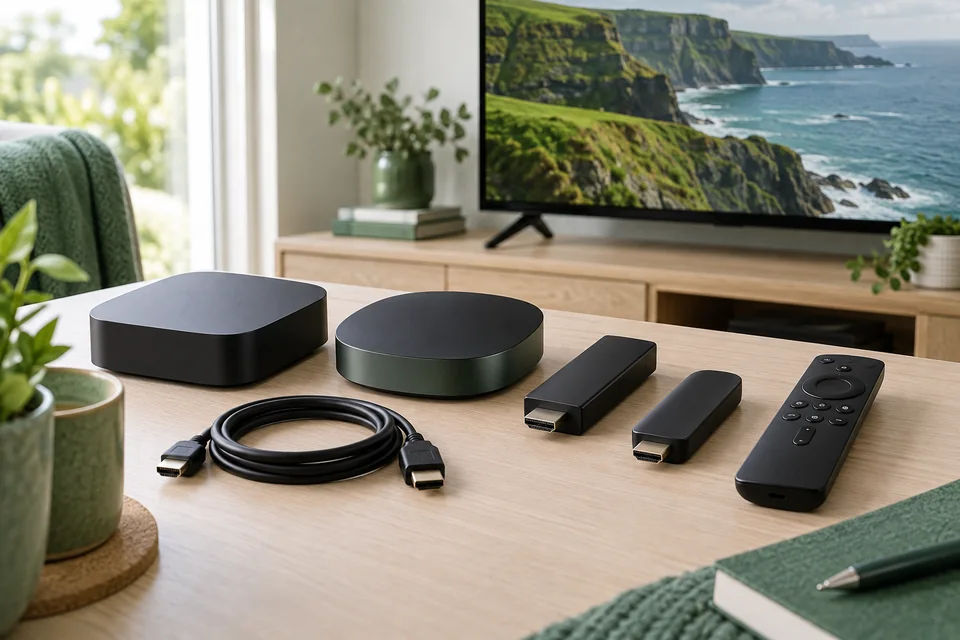
Make a device passport first
Record the model number from the device’s own information screen or label. A marketing name such as Smart TV, Android box or Fire Stick can cover several generations. Note the operating-system version where it is visible and the country or region used by the app store. Keep a photograph of the model label privately if typing a long code is inconvenient.
Next, record how you intend to control playback: television remote, touch screen, keyboard or mouse. An app can technically open on a device yet be awkward to navigate from a sofa. Before paying for activation, check that you can reach the programme list, search, audio options and exit controls using the equipment you actually have.
Your passport should also name the connection to the network and the display. A television using built-in Wi-Fi has a different setup path from a streaming box connected by HDMI and Ethernet. Write down the intended room as well. Testing beside the router does not tell you exactly how the same device will behave in an upstairs bedroom.
| Record | Example of useful detail |
|---|---|
| Hardware | Full model number, not just the brand |
| Software | Operating system and current app version |
| Controls | Original remote, touch or keyboard |
| Connection | Wi-Fi or supported Ethernet connection |
| Viewing requirement | Live TV, subtitles, programme guide or other needed controls |
Samsung, LG and other Smart TVs
Start in the television’s official app store and check the exact publisher of the intended player. Search results with similar icons or names are not sufficient evidence that two listings are the same product. If you cannot find the app, ask about that model and region before following an installation guide intended for another operating system.
Samsung’s official app-management guide explains its TV app controls and notes that details vary by model. Follow the instructions relevant to your television. A Samsung television should not be treated as an Android TV simply because both can run streaming apps.
For an LG television, identify the webOS version and check the actual store listing on that set. Avoid assuming that an app mentioned in an older article is available now on every LG model. If support recommends a player, confirm the name and publisher together, and ask whether a separate activation is required.
If the television’s built-in software cannot provide the required app or controls, a compatible external streaming device may be an alternative. That is a separate hardware choice: check the television’s inputs, the device’s power requirements and its supported app store before buying. An external device does not remove the need for a suitable subscription or increase your connection allowance.
Choose the correct stick or box path
Fire TV
Use the exact Fire TV model and software details in your enquiry. Look for the intended app in the device’s official store first. Do not assume that instructions for an Android phone, a different Fire TV generation or a similarly named box will apply unchanged. If the expected listing is unavailable, pause and confirm a supported route instead of installing a file from an unknown download page.
Google TV and Android TV
Google publishes instructions for finding and installing apps on Google TV. Use the device’s own store interface and confirm the listing. The appearance of the home screen may vary, so retain the app name and publisher rather than relying only on an icon’s colour or position.
An Android box is not a sufficiently precise compatibility description. Check whether the device uses a television-oriented interface or a different Android build, and whether the intended app is available through its supported store. Also check remote navigation. A touch-oriented screen can be frustrating when only directional remote buttons are available.
Apple TV
Apple’s app-download instructions for Apple TV distinguish the supported app-installation experience from older equipment. Identify the actual Apple TV hardware before selecting a player. The name Apple TV can also refer to an app or service, so a message saying only “I use Apple TV” may leave support unsure which device you mean.
Compare Plans for Your Viewing Needs
Phones, tablets, Windows and Mac
For a phone or tablet, begin with its operating system and the official app listing. Check the publisher, supported version and any activation charge before entering access details. Keep the app’s account separate from the streaming credentials where the product uses different logins. Saving the wrong password in the wrong place can turn a simple setup into a confusing support conversation.
On Windows or Mac, identify whether the recommended player is a desktop application or a supported browser experience. Do not substitute one just because the names sound similar. A desktop installer should come from the verified publisher’s distribution route. If the operating system raises a warning, investigate the identity and compatibility rather than reflexively overriding it.
Check practical details on smaller screens: readable programme names, subtitle size, audio selection and how to stop playback completely. On a laptop, consider where notifications appear if you plan to share the display. On a phone, confirm whether you are using Wi-Fi or mobile data before a long viewing session and consult your mobile plan for its applicable allowance.
Casting and screen mirroring are additional setup paths, not automatic substitutes for a television app. Apple’s AirPlay guidance explains streaming and mirroring from an iPhone or iPad and notes that some video apps may not support AirPlay. Test the intended combination; do not infer support merely from owning two devices with compatible brand names.
A controlled first-playback checklist
Install only the confirmed player, then check that you can open and close it before entering subscription details. Complete required device or app updates through their normal controls. If an update changes the interface, record the new version rather than trying to force an older screenshot’s steps onto the current screen.
Enter the supplied access information exactly into the matching input type. A playlist address, a username/password/server combination and a device activation code are not interchangeable. Ask support which method applies to your selected player. Avoid copying private credentials into search engines or public troubleshooting posts.
For the first check, close other active playback sessions. Open one confirmed item and test audio, stopping, resuming where supported, and returning to the programme list. Then test the controls that matter to you, such as subtitles or guide navigation. Only after the first device works should you repeat the process on another screen within the confirmed connection allowance.
A hypothetical setup log might read: “Sitting-room TV, model recorded, player version recorded, Wi-Fi, live item opens, audio works, subtitles not yet checked.” That is more useful than “everything works” because it separates observed results from untested features. It also makes the next support question specific.
Separate installation, login and playback faults
If the app will not install, focus on the model, store, software version and available storage. If it installs but rejects access details, focus on the input method and the exact error message. If menus load but a particular item does not play, record that item’s name privately and whether other items behave differently. These stages point to different questions.
Do not immediately uninstall a working app when only one programme fails. First note what changed and preserve any settings you may need. Uninstalling can remove local favourites or settings, depending on the player. Similarly, a factory reset is a much broader action than restarting an app; use it only when appropriate manufacturer guidance and your own recovery information are available.
For a useful support request, include the device passport, the stage that fails, the time it happened and a concise error description. A cropped screenshot can help, but remove usernames, passwords and full playlist addresses. Use the official setup-support route and keep the original order reference available privately.
Retain a short record of the final working configuration. If you replace the remote, move the device or update the player later, that record gives you a starting point for comparison. It is especially useful when another household member needs to explain the setup to support.
Frequently asked questions
Does every Smart TV support the same players?
No. Check the exact model, operating system and current store listing. A guide for one brand or generation does not establish compatibility with another.
Can I install a phone app on any Android box?
Do not assume so. Verify the supported platform and controls. An application designed around touch may not offer a practical remote-control experience.
Does installing the player activate my subscription?
No. Installation makes the software available. Player activation and streaming access may involve separate steps; see the player-app guide.
Should I test every device at once?
Start with one, then add others within your confirmed allowance. This makes it easier to distinguish an individual setup problem from a simultaneous-use limit.
Can I use a television app and casting interchangeably?
Only after verifying the particular combination. Casting or mirroring introduces another device and its own controls, and not every app supports it.
What should I send when an app is missing?
Send the model, software version, store region and exact app name privately to support. A photograph of a search result alone may omit the information needed to identify the mismatch.
Will a new streaming box guarantee better picture quality?
No. The source, app, display and network also matter. Use the picture-quality checklist before assuming one hardware change will solve every issue.
With the device and app confirmed, choose the duration and simultaneous allowance that fit how you watch. Keep your setup notes: they will remain useful if you later replace equipment or need help with a specific playback issue.