
IPTV Picture Quality: 4K, Wi-Fi and VPN Questions
IPTV picture quality depends on the complete playback chain: the available source, player, device, display and network connection. A 4K television or a Premium label alone cannot establish what every programme will look like. Check the content you actually want, then evaluate your real setup one variable at a time. Keep picture softness, buffering, app slowness and missing audio as separate observations.
This guide gives IPTV Ireland viewers a fault-isolation method and a practical trial worksheet. It covers Wi-Fi placement, supported wired comparisons, device updates and questions about VPNs without promising a universal speed threshold or a guaranteed fix. Any trial duration, connection allowance and conditions must be confirmed through the trial enquiry page before testing.
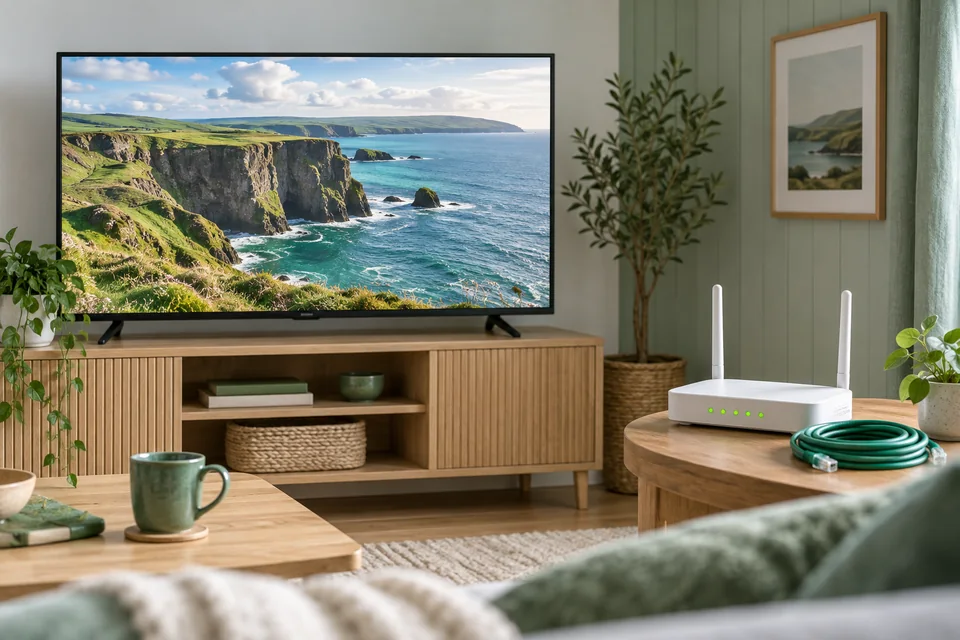
Check the whole playback chain
Start with the specific item. Is the source available in the quality you are expecting? Next, check whether the selected player and device support the required playback format. Then consider the display and its connection to the device. Finally, assess the network path used in the room where you watch. A limitation at any stage can matter.
Do not confuse the television’s panel resolution with the resolution of the incoming source. A display can show a lower-resolution programme, but the screen’s specifications do not prove that the original contains more detail. Similarly, a higher tier should be assessed against its confirmed features, not used as an explanation for every visual difference.
Write down what you see in plain language. “The picture pauses every few minutes” is different from “the picture continues smoothly but looks soft.” “The menu takes several seconds to respond” is different again. These descriptions are more useful than assigning every symptom to internet speed before checking the evidence.
Create a baseline you can repeat
Choose the device, player and room you normally use. Record their model and version details, the type of network connection, the time of the check and the item selected. Close other playback sessions so that you stay within the confirmed simultaneous allowance. Note significant household network activity, such as another large download, without assuming it is the cause.
Observe a representative period of playback and record the result. There is no single short test that certifies all future performance. Your aim is to make comparisons meaningful, not to manufacture a guarantee. If a problem appears intermittently, write down when it happens and whether the same pattern recurs.
| Observation | Useful detail |
|---|---|
| Picture | Soft, blocky, frozen or smooth |
| Sound | Present, absent, interrupted or out of step |
| Controls | Responsive menus or slow navigation |
| Scope | One item, several items or all playback |
| Context | Device, room, connection, time and active streams |
Keep the first record even if a later check improves. A before-and-after comparison is more informative than a final statement that something “seems fine.” It also stops you forgetting which settings were in place when the problem occurred.
Assess Wi-Fi where you actually watch
A broadband package’s advertised connection does not describe every wireless path inside a home. The device’s room, surrounding materials and router placement can affect that path. Google’s Wi-Fi performance guidance identifies distance and obstructions as factors for its equipment. Use your own router manufacturer’s instructions for settings and placement.
In an Irish home with the router near the front door and the television at the rear, the useful question is how that actual route behaves. A phone test beside the router answers a different question. Test from the intended viewing position and record the device used; different devices are not interchangeable measuring instruments.
If your equipment supports Ethernet and a safe temporary cable arrangement is practical, a wired comparison can help isolate the local wireless portion. Keep the same player and item, stop the previous session and change only the connection. Avoid trailing cables across walkways. Record whether the symptom changes rather than assuming that wired playback must solve it.
Do not change router channels, app buffers, resolution and device settings all at once. If playback improves, you would not know which change mattered. Use one supported change, compare, and either keep the useful result or return to the previous setting before investigating another factor.
Distinguish a slow app from a playback problem
If menus are slow before a video opens, inspect the device and application as well as the network. Check for normal app and system updates through official controls. Google’s Google TV troubleshooting guidance includes restarting, closing background apps and checking updates for a slow device. Follow the relevant manufacturer’s steps for your equipment.
Record an app update as a change, especially if the controls or behaviour differ afterwards. Do not assume that deleting all data is the same as restarting. Clearing data or uninstalling may remove saved settings, depending on the application. Keep the access information you legitimately need in a private, secure place before undertaking a step that removes it.
When only one item is affected, test one other confirmed item without changing the whole setup. When the entire app is affected, note whether another ordinary device function is also slow. These observations help you describe the scope. They do not prove a particular component is at fault, but they narrow the next question.
The setup fault-isolation guide separates installation, login and playback stages. Use that sequence if the player never reaches a working content list; picture-quality adjustments are premature when access itself has not been established.
Ask precise questions about VPNs
Do not add a VPN solely because an unsourced tutorial calls it a universal buffering fix. Ask whether the intended service and device support the proposed arrangement and what the relevant terms permit. A VPN is another part of the connection path, so its presence belongs in your setup notes rather than being ignored during troubleshooting.
This guide does not claim that any plan includes a verified VPN capability or that a VPN grants rights to content. Do not treat a location change as permission to access something outside the applicable conditions. If a VPN is already configured for a legitimate purpose, tell support that it is present without sharing passwords or private account details.
Keep any comparison controlled and consistent with your requirements. Record which configuration was used and what happened. Do not describe a single successful attempt as proof of better privacy, universal compatibility or permanently improved playback. Those are different questions requiring their own evidence.
Use a trial as a structured evaluation
First confirm whether a trial is currently available, its duration, the allowed connections, the covered features and any conditions. A player-app trial and a streaming trial are separate arrangements. Do not assume that the timer shown in an application defines the service trial or that opening an enquiry has activated anything.
Prepare your device before the agreed evaluation period begins. Identify the player, check its controls and keep the exact questions you want to answer nearby. Spending most of a short trial searching for the right app tells you little about ordinary viewing. If setup is unresolved, contact support with the model details first.
Build a small test list from your real needs: a confirmed live item, an on-demand title if available, guide navigation, audio or subtitles that matter to you, and a second simultaneous stream only if the allowance permits it. Label each result observed, failed or not checked. A missing test is not a pass.
A hypothetical result might read: “Main TV playback observed; guide readable; second screen not tested; requested replay not confirmed.” That gives you a clear follow-up before purchase. It is more honest and useful than declaring the entire service perfect after opening one stream for a moment.
Use the plan-selection guide afterwards to compare the duration and allowance that match the evidence you collected. Do not let an attractive annual equivalent substitute for unresolved setup or availability questions.
Send a report that preserves the evidence
Summarise the baseline, the one change you tried and the result. Include the device model, player version, connection type, time and whether one or several items were affected. If the issue concerns a named programme, provide the exact title privately. Crop screenshots to remove credentials and full playlist addresses.
Keep the original settings available so that you can return to a known state. If a manufacturer advises a reset, first understand what it removes and how you will recover access. For an existing subscription, use existing-customer support with the original order reference where available.
After a useful change, repeat the ordinary viewing task that originally exposed the problem. A responsive menu does not confirm that a previously interrupted video now plays normally. Record the result against that original symptom, and leave unrelated features marked untested. This keeps the support history accurate if another issue appears later.
Frequently asked questions
Will a 4K television make every programme 4K?
No. The source and the rest of the playback chain must support the result. Confirm the particular content rather than relying on the display’s specification alone.
Does a fast phone speed test rule out a Wi-Fi issue?
No. The test may use a different device or location. Compare conditions at the actual viewing device and note the limitations of your measurement.
Should I change every setting when buffering occurs?
No. Change one supported variable at a time and record the outcome. Otherwise you lose the ability to identify which change helped.
Is a VPN guaranteed to improve playback?
No guarantee is made here. Check compatibility, applicable conditions and the actual result for your configuration before drawing a conclusion.
Does a successful trial guarantee future performance?
No. It records observations during a limited period and setup. Keep untested features and unresolved questions visible before choosing a longer commitment.
How many screens should I test?
Only the number allowed by the confirmed trial or subscription. Start with one working screen, then test the simultaneous arrangement you intend to use if permitted.
Where do I ask for a trial?
Use the trial availability enquiry. Confirm its terms first; the page does not automatically create access.
Bring your observations back to the plan comparison. A suitable choice combines the features you have checked, the screens you need together and a commitment you understand. Resolve remaining questions before paying, and keep your setup log for future support.